Not under the current rule. The current Security Rule does not name MFA; its person or entity authentication standard requires procedures to verify that a person seeking access to ePHI is the one claimed (45 CFR 164.312(d)). The January 6, 2025 proposed rule (90 FR 898) would make MFA mandatory. That proposal is not final.
If you run a medical practice and someone in IT has mentioned “MFA” lately, they’re not wrong to bring it up.
Multi-factor login checks could become a legal rule under HIPAA. The proposed HIPAA Security Rule update, expected to be finalized in July 2027, would move it from the “nice to have” category to the “required” category. As proposed, the compliance date would fall 240 days after a final rule is published.
But here’s the thing: you don’t need to wait for the final rule. MFA is one of the most effective security controls that exists, it’s inexpensive, and for most organizations it takes less than a day to set up. If you’re not using it yet, that’s the single highest-impact security improvement you can make today. Paired with HIPAA encryption requirements, MFA forms the foundation of a defensible security posture for any healthcare organization.
This guide is written for practice administrators and healthcare managers who aren’t tech. No jargon. Just what you need to know and exactly what to do.
What Multi-Factor Authentication Actually Is (Without the Tech-Speak)
You already use multi-factor login checks in your personal life. When your bank texts you a code after you enter your password, that’s MFA. When you log into your personal email on a new device and it asks for a code from an app, that’s MFA.
The concept is simple: instead of proving who you are with just a password, you prove it with two things. Usually a password plus a code that only you can generate right now, on a device only you have.
Here’s why that matters for healthcare security: passwords get stolen constantly. Phishing emails trick employees into typing their credentials into fake login pages. Data breaches expose millions of passwords at once. People reuse passwords across accounts. Any of these scenarios can hand a hacker valid login credentials for your EHR, your email, your billing system.
But with MFA turned on, stolen credentials alone aren’t enough. The attacker also needs physical access to your employee’s phone. That’s a dramatically harder attack to pull off, which is why Microsoft reported in 2019 that MFA can block over 99.9 percent of account compromise attacks (Microsoft Security blog, August 20, 2019).
A phishing attack took down a small Illinois addiction treatment clinic in 2022: 1,980 patients’ records exposed, a $103,000 fine from OCR, two years of federal tracking. That breach started with one employee’s password getting stolen. MFA would have stopped it cold. You can read the full enforcement story in our OCR Part 2 enforcement breakdown.
The 3 Types of MFA (And Which One Your Practice Needs)
1. SMS Text Message Codes (Weakest)
After entering your password, the system texts a 6-digit code to your phone. You enter the code to get in.
This is the most common and the easiest to understand. It’s also the weakest form of MFA. There’s an attack called SIM swapping where a criminal convinces your mobile carrier to transfer your phone number to a new SIM card they control, and then they receive your texts. It’s not common, but it happens. For a medical practice handling sensitive patient data, you can do better.
2. Authenticator App Codes (Best for Most Practices)
An app on your phone generates a new 6-digit code every 30 seconds. To log in, you open the app and type the current code. The code is generated locally on your phone; nothing is transmitted over the cellular network, so SIM swapping doesn’t work against it.
This is the sweet spot for small practices: strong security, easy to use, costs nothing extra. The three main apps are:
- Microsoft Authenticator: Best choice if you use Microsoft 365 (Outlook, Teams, etc.). Free. Works on iPhone and Android.
- Google Authenticator: Simple, reliable, works with almost any system. Free. Good choice if you don’t use Microsoft products.
- Duo: More features, designed for business use, has a management dashboard. Free plan available, paid plans start around $3/user/month.
For most organizations under 20 people, Microsoft Authenticator or Google Authenticator is all you need. They’re free, they’re widely supported, and your IT person can set them up in a morning.
3. Hardware Security Keys (Most Secure)
A physical USB device (like a YubiKey, which runs $25-$50 per key) that you plug in when logging in. This is the most secure option and is essentially impossible to phish or compromise remotely. It’s also the most expensive and most in daily practice complex: you need to manage physical keys, deal with lost keys, and ensure staff have them available wherever they log in.
This is right for high-privilege accounts (your IT administrator, your EHR superuser) but is probably overkill as a standard for every front desk employee. Start with authenticator apps, consider hardware keys for your most sensitive accounts.
What MFA Costs for a Small Healthcare Practice
For most small practices, MFA costs very little, often nothing extra.
If you use Microsoft 365: MFA is included with every Microsoft 365 subscription at no extra cost. You already paid for it. You just need to turn it on.
If you use Google Workspace: Same situation. MFA is built in, included in your subscription.
If you use Duo: The free tier supports unlimited users with core MFA. The paid Duo Essentials plan ($3/user/month) adds device health checking and more integrations, useful if you want a centralized dashboard showing which staff have MFA active.
If you use a standalone EHR or billing system: Check whether your vendor supports MFA. Most major EHR platforms (Epic, athenahealth, eClinicalWorks, etc.) support it. For some older or less sophisticated systems, you may need a third-party identity provider. Your IT person can advise.
The bottom line for a five-provider practice: you’re likely looking at $0-$50/month total, depending on whether you need a paid Duo plan. Compare that to the cost of a breach (the average healthcare data breach hit $9.77 million in 2024) and MFA is the best security investment you’ll ever make.
How to Roll Out MFA: Step-by-Step setup Guide
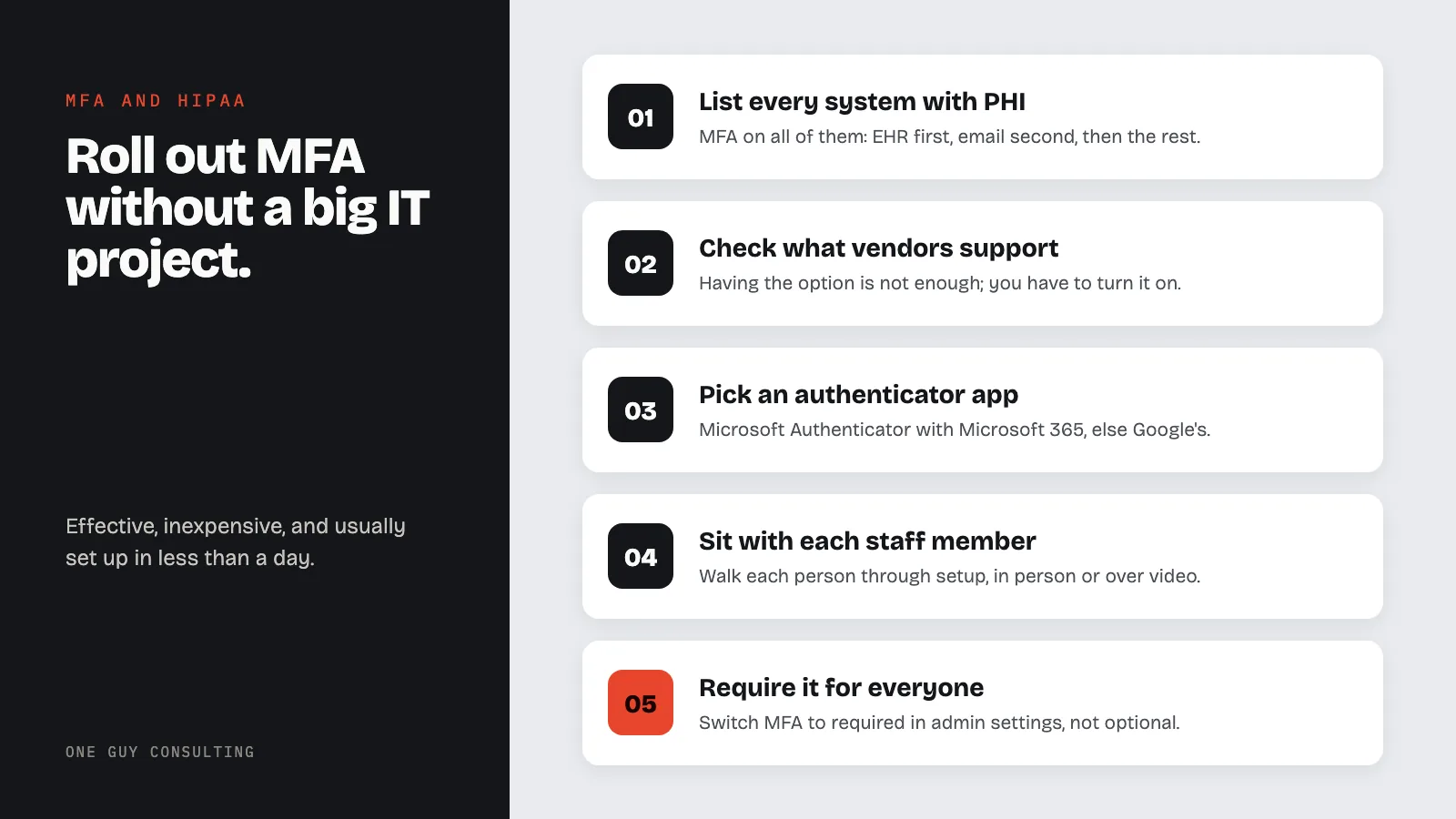
You don’t need a big IT project for this. Here’s a practical sequence for a small practice.
Step 1: List Every System That Accesses Patient Data
Start with your EHR. Then: email (this is huge; email is where most breaches start), patient portal, billing software, practice management system, any cloud storage where you keep scanned records or records, remote access tools if your staff works from home or between locations.
You want MFA on all of them. Prioritize: EHR first, email second, everything else after.
Step 2: Check What Your Vendors Already Support
Log into the admin settings of each system and look for “Security,” “login checks,” or “Two-Factor login checks.” Most will have a section for it. If you can’t find it, call your vendor’s support line and ask: “Does your system support multi-factor login checks, and how do I enable it?”
Don’t assume it’s enabled just because the option exists. You have to turn it on. And while you’re reviewing vendor security, make sure you don’t have any of the common BAA mistakes that leave you exposed.
Step 3: Pick Your Authenticator App
For most organizations: Microsoft Authenticator if you use Microsoft 365, Google Authenticator if you don’t. Download it on your own phone first and test it with one account before you roll it out to staff.
Step 4: Set a Deadline and Tell Your Staff
Give your team two weeks’ notice. Send a clear, simple message: “On [date], we’re turning on two-step login for [EHR name] and email. You’ll need to download [app name] on your phone. We’ll walk everyone through it.”
Include a reason. People are more cooperative when they understand why. “This protects our patients’ records and keeps us from getting hacked” is a reason they’ll respect.
Step 5: Do a 15-Minute Setup Session With Each Staff Member
Don’t email instructions and hope for the best. Sit with each person (in person or over video) and walk through the setup. It takes about 10-15 minutes per person. Open the app, scan the QR code the system shows, verify the first code works. Done.
For staff who don’t have smartphones or who resist using personal devices, you have options: a dedicated small tablet kept at their workstation, a hardware security key, or in some cases SMS codes (weaker but better than nothing). Work with people, but don’t let “I don’t have a smartphone” become a permanent exception.
Step 6: Turn on MFA for the Whole group
Once everyone is enrolled in the app, flip the switch in your admin settings to require MFA. Don’t leave it as optional. Optional means someone will skip it. Required means everyone is protected.
Step 7: Have a Backup Plan for Lost Phones
This will happen. Someone will get a new phone and forget to transfer their authenticator codes. Document what your vendor’s account recovery process is before someone is locked out at 8am on a Monday. Most systems have backup codes you can generate and store securely, or an admin override process.
Common MFA Objections in Healthcare, Answered
“My staff will hate this.”
The first week, you’ll get complaints. After that, most people forget it’s even there. It takes 10 seconds to open an app and type a code. Frame it as protecting the practice and patients. The resistance is usually lower than administrators expect.
“What if someone doesn’t have a smartphone?”
See Step 5 above. Hardware keys or a dedicated tablet at their workstation solve this. SMS codes are a fallback. Work around it. Don’t use it as a reason to skip MFA entirely.
“Our EHR vendor doesn’t support MFA.”
Push your vendor on this. Major EHR vendors universally support MFA at this point. If yours doesn’t, that is a major security and compliance liability. Consider whether it’s time to raise this issue formally with your vendor, or whether that system’s lifecycle is coming to an end.
“We’re a tiny practice. Nobody is targeting us.”
Healthcare data is among the most valuable data on the black market. A patient’s full record (name, date of birth, Social Security number, diagnosis, insurance information) can fetch $250-$1,000 per record on criminal forums. The attackers running phishing campaigns aren’t targeting large groups namely; they’re running automated attacks against thousands of email addresses at once. Small practice, large practice, it doesn’t matter to a phishing bot. In 2025, 710 large breaches were reported to OCR, and that doesn’t count the thousands of smaller breaches that fly under the radar.
Your MFA Compliance Timeline
The proposed HIPAA Security Rule is expected to be finalized in July 2027. As proposed, a final rule would take effect 60 days after publication and set a compliance date 180 days after that, 240 days in all. Until a final rule is published, there is no MFA deadline.
But here’s a better way to think about the timeline: every month you’re not using MFA is a month where a phishing email can hand a hacker access to your patient records. A final rule would be the legal forcing function, but the security benefit starts the day you turn it on.
Most habits can have MFA running on their EHR and email within a week of deciding to do it. That’s a week of effort to eliminate one of the most common entry points for healthcare data breaches.
The rule is proposed, not final, so there is no deadline yet. The technology to turn on MFA is sitting free in the App Store and Google Play right now.
The Proposed Rule Change That Would Make MFA Mandatory
HIPAA’s Security Rule divides its implementation specifications into two buckets: "required" and "addressable" (45 CFR 164.306(d)(1)). The current rule does not name multi-factor authentication at all. Its person or entity authentication standard requires procedures "to verify that a person or entity seeking access" to ePHI "is the one claimed" (45 CFR 164.312(d)). The proposed rule would change that.
The January 2025 HIPAA Security Rule update is a proposed rule (published in the Federal Register on January 6, 2025, 90 FR 898) that would eliminate the addressable/required distinction. As proposed, every covered entity and every business associate would have to deploy MFA on all technology assets in systems that store, transmit, or touch electronic protected health information (ePHI). The proposal would allow limited exceptions, such as a technology asset that does not support MFA while "a written plan to migrate electronic protected health information to a technology asset that supports multi-factor authentication" is in place. The rule is not final.
As proposed, the compliance date would be 180 days after the final rule takes effect, and a final rule would take effect 60 days after it is published. HHS has not published a final rule, so no MFA deadline applies yet.
What this would mean in practice if the proposal is finalized as written:
- Every EHR login requires MFA (no password-only access)
- Cloud storage (Google Drive, SharePoint, Dropbox for Business) used for any PHI requires MFA
- Remote desktop and VPN connections to clinical systems require MFA
- Administrative consoles (your compliance software, billing systems, HR platforms with PHI) require MFA
- Email accounts that receive or send PHI require MFA
Not All MFA Is Created Equal: What OCR Actually Wants to See
Implementing MFA is the floor, not the ceiling. OCR evaluates not just whether you have MFA enabled, but whether your MFA implementation is appropriate for the risk level of the systems it protects.
The three factor types:
- Something you know: password, PIN, security question (weakest on its own)
- Something you have: authenticator app (Google Authenticator, Microsoft Authenticator, Duo), hardware security key (YubiKey), smart card
- Something you are: fingerprint, face scan, voice recognition
How to choose the right factor for your environment:
| System Type | Recommended MFA Method | Why |
|---|---|---|
| EHR (Epic, Cerner, Athena) | Authenticator app or hardware key | High-value target; phishing resistance needed |
| Email (clinical staff) | Authenticator app minimum | Frequent phishing vector |
| Cloud file storage with PHI | Authenticator app | Balances usability with security |
| VPN / remote access | Hardware key (FIDO2) preferred | Strongest protection for network entry |
| Administrative consoles | Authenticator app or hardware key | Admin accounts are the highest-value targets |
A word on SMS text message codes: NIST guidelines (SP 800-63B) classify SMS OTP as a “restricted” authenticator due to SIM-swapping attacks. OCR has not explicitly banned SMS MFA, but if you are relying on text message codes to protect systems with large volumes of PHI, you should have a migration plan to app-based or hardware authentication. SMS is better than nothing, but it should not be your long-term strategy.
The MFA Audit Trail: What to Document Before OCR Comes Knocking
Enabling MFA is step one. Proving it to an auditor is step two. OCR expects documented evidence, not verbal assurances.
Your MFA documentation package should include:
System inventory: A complete list of every system that accesses, stores, or processes ePHI, with the MFA method applied to each. This does not need to be elaborate (a spreadsheet is fine), but it must exist and be current. Your HIPAA risk assessment is the natural home for this inventory.
Policy language: If your practice requires MFA, say so in your security policies and name the systems it covers. The current rule requires you to "Maintain the policies and procedures implemented to comply with this subpart in written (which may be electronic) form" (45 CFR 164.316(b)(1)(i)); it does not require MFA language by name.
Training records: Keep a record that each workforce member who accesses PHI systems was trained on MFA. This does not mean a one-hour course; it means evidence they were told what MFA is, how to use it, and what to do if they lose their authenticator device. Your HIPAA training records serve as this proof.
Exception log: If any system cannot support MFA (legacy clinical equipment is the most common exception), document it: what system, why MFA cannot be implemented, what compensating controls reduce the risk, and when you plan to remediate.
Incident log: If an MFA prompt was bypassed or failed, log it. OCR will look for evidence that your monitoring catches authentication anomalies, not just that MFA is technically enabled.
MFA and HIPAA: Frequently Asked Questions
- Is MFA required by HIPAA or just recommended?
- Not under the current rule. The current Security Rule does not name MFA; its person or entity authentication standard requires procedures "to verify that a person or entity seeking access" to ePHI "is the one claimed" (45 CFR 164.312(d)). The Security Rule changes HHS proposed on January 6, 2025 (90 FR 898) would remove the distinction between "required" and "addressable" safeguards and make MFA mandatory for covered entities and business associates. That proposal is not final.
- Does HIPAA require MFA for all employees or only certain roles?
- The current rule does not require MFA by name. As proposed (90 FR 898), MFA would apply to all technology assets in the relevant electronic information systems of a covered entity or business associate, so it would cover all users, regardless of role, seniority, or how infrequently they access those systems. A billing clerk who logs into the practice management system twice a month needs MFA just as much as a physician logging in daily.
- Can I use SMS text messages for HIPAA MFA compliance?
- SMS-based one-time codes are a form of MFA, but NIST classifies SMS as a “restricted” authenticator due to SIM-swapping risks. OCR has not prohibited SMS MFA, but healthcare organizations handling large volumes of PHI should plan to migrate to authenticator apps or hardware keys. SMS is acceptable as a transitional measure, not a permanent solution.
- What happens if a legacy system cannot support MFA?
- Legacy systems that cannot technically support MFA are a known compliance challenge. The current rule does not require MFA. The proposed rule (90 FR 898) would excuse such a system only while "a written plan to migrate electronic protected health information to a technology asset that supports multi-factor authentication within a reasonable and appropriate period of time" is in place. Either way, document the limitation, implement compensating controls (network segmentation, additional monitoring, strict physical access controls), and create a remediation timeline.
- When is the HIPAA MFA compliance deadline?
- There is none yet. The Security Rule changes HHS proposed on January 6, 2025 (90 FR 898) are not final and are expected to be finalized in July 2027. As proposed, a final rule would take effect 60 days after publication, with a compliance date 180 days after that. Implementation takes time, and starting now provides a buffer.
Key stat: The proposed 2025 HIPAA Security Rule update would require MFA on all technology assets in relevant electronic information systems (90 FR 898). The current person or entity authentication standard, 164.312(d), does not name MFA. Organizations that implement MFA now will be ahead of the mandate and significantly reduce their exposure to phishing-based breaches.
Sources
- 45 CFR 164.312(d) - Person or Entity Authentication
- NIST SP 800-63B - Digital Identity Guidelines: Authentication
- HHS Cybersecurity Guidance for HIPAA
- CISA: Multi-Factor Authentication
Related Reading
- HIPAA Encryption Requirements for 2026
- ePHI Access Control Best Practices
- HIPAA Three Safeguards Guide
- Security Rule Implementation Guide
- Mobile Device Security for Healthcare
- The New HIPAA Security Rule Is Coming: 7 Major Changes for 2026
- Why “Addressable” Doesn’t Mean “Optional”: The HIPAA Myth That Gets Practices Fined
- OCR Just Fined a Substance Abuse Clinic $103K: What It Means for Your Practice
- Ransomware Hit Your Practice: The First 72 Hours
- The affordable HIPAA Compliance Checklist for Small Practices
Need help getting your practice in line? One Guy Consulting offers affordable HIPAA compliance packages starting at affordable. Explore HIPAA rule-keeping services
Frequently Asked Questions
Is MFA required for HIPAA compliance?
Not under the current rule. The current Security Rule does not name multi-factor authentication; its person or entity authentication standard requires procedures to verify that a person seeking access to electronic protected health information (ePHI) is the one claimed (45 CFR 164.312(d)). HHS proposed making MFA mandatory in a Notice of Proposed Rulemaking on January 6, 2025 (90 FR 898), and it is not final.
What is the best MFA app for a small medical practice?
Microsoft Authenticator and Google Authenticator are the most common choices for small practices. Both are free, work on iOS and Android, and support time-based one-time passwords (TOTP). Choose based on which ecosystem your practice already uses.
How much does it cost to set up MFA for HIPAA?
For most small practices, MFA setup costs nothing for the authenticator apps themselves. Cloud-based EHR systems like athenahealth and eClinicalWorks include MFA at no extra charge. Hardware security keys cost $25 to $50 each if you prefer physical tokens.
What are the most common MFA objections from staff?
Staff typically object that MFA is too slow, they forget their phone, or it blocks them during emergencies. Address these by enabling trusted-device remember options for 30 days, keeping backup codes in a secure location, and setting up a break-glass account for genuine emergencies.